
Jailbreaking Devices for iOS with palera1n
palera1n is a jailbreak tool for iOS devices built on the checkm8 bootrom exploit, which affects certain older iPhone
and iPad models (A8–A11 chips running iOS 15–16.x). Because checkm8 is a hardware-based exploit, it cannot be patched by
Apple through software updates, making palera1n a reliable option for supported devices. Unlike one-click jailbreaks,
palera1n is a more developer-focused tool.
It typically runs from macOS or Linux and uses command-line instructions to
put a device into DFU mode and apply the jailbreak. Once installed, it allows you to run tweaks, install alternative app
stores like Sileo, and access deeper parts of the operating system that are normally locked down. Many iOS security
researchers and pentesters use palera1n because it enables low-level testing and dynamic analysis of apps in a
controlled environment.
The steps below are provided to help you get started. Proceed at your own risk, as this process can cause serious issues
with your device, including instability or data loss. It is strongly recommended to use a secondary, compatible device
rather than your primary device. Please proceed at your own risk and make sure your device is compatible.
This guide will focus on MacOS and Linux, since that is the support method from Palera1n.Windows is possible, but not covered in this guide. You can read more information on that here.
Installation
Official installation can be found here – palera1n
Run the following command in Terminal to install Palera1n:
sudo /bin/sh -c "$(curl -fsSL https://static.palera.in/scripts/install.sh)"
Once installed, check that it’s working by running:
palera1n
You should see output similar to the screenshot below.

You can now run the command:
palera1n -l
You should see a message “Waiting for devices”. Go ahead and plug in your device and make sure to click “Trust Device”.

Once your device is plugged in you should see a message “Press Enter when ready for DFU Mode”

Please follow this carefully!
To proceed with the jailbreak, enter DFU mode using the following method:
- Press Enter
- Hold Home + Power for 10 seconds
- Then release Power , but continue holding Home for another 5 seconds

If all goes as planned this should be on your device.
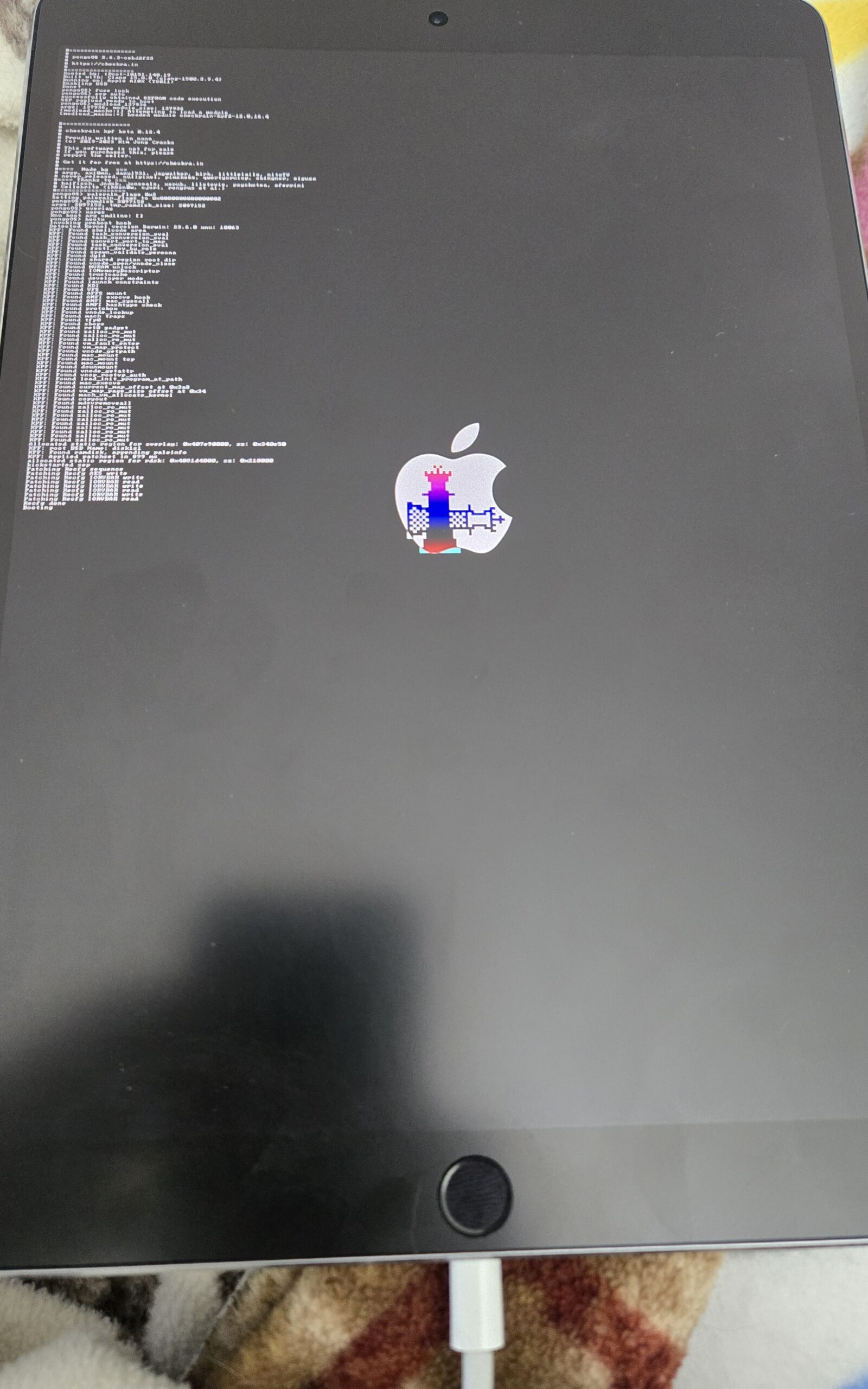
After a few seconds, you should be back on your device and see the palera1n app.
The next part is optional, but what I use when I pentest apps to access the device via SSH and use Frida.
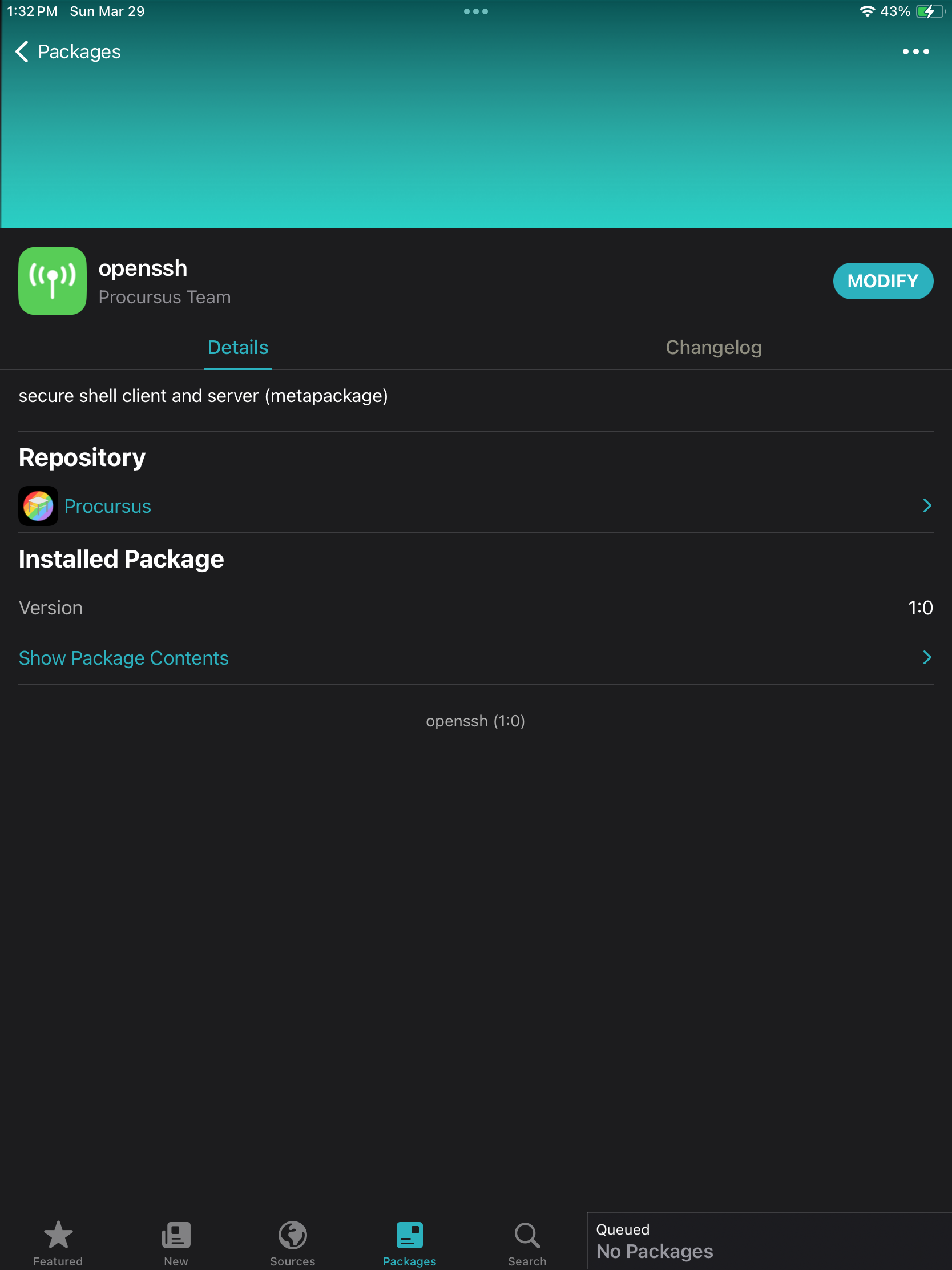
Now we can install Sileo (Package Manager), OpenSSH, and Frida.
Installing Sileo & OpenSSH
- Launch Palera1n on the device and install Sileo.
- From Sileo, install the OpenSSH package.
- When prompted, set a password for SSH access.
You can now SSH into your device from your computer:
ssh mobile@192.168.x.x (IP address of device)
- Use the password you set during the OpenSSH installation.
- Note: Older guides may reference default credentials (such as “alpine”), but these should not be relied upon.
Always set a secure password.
Installing Frida Server
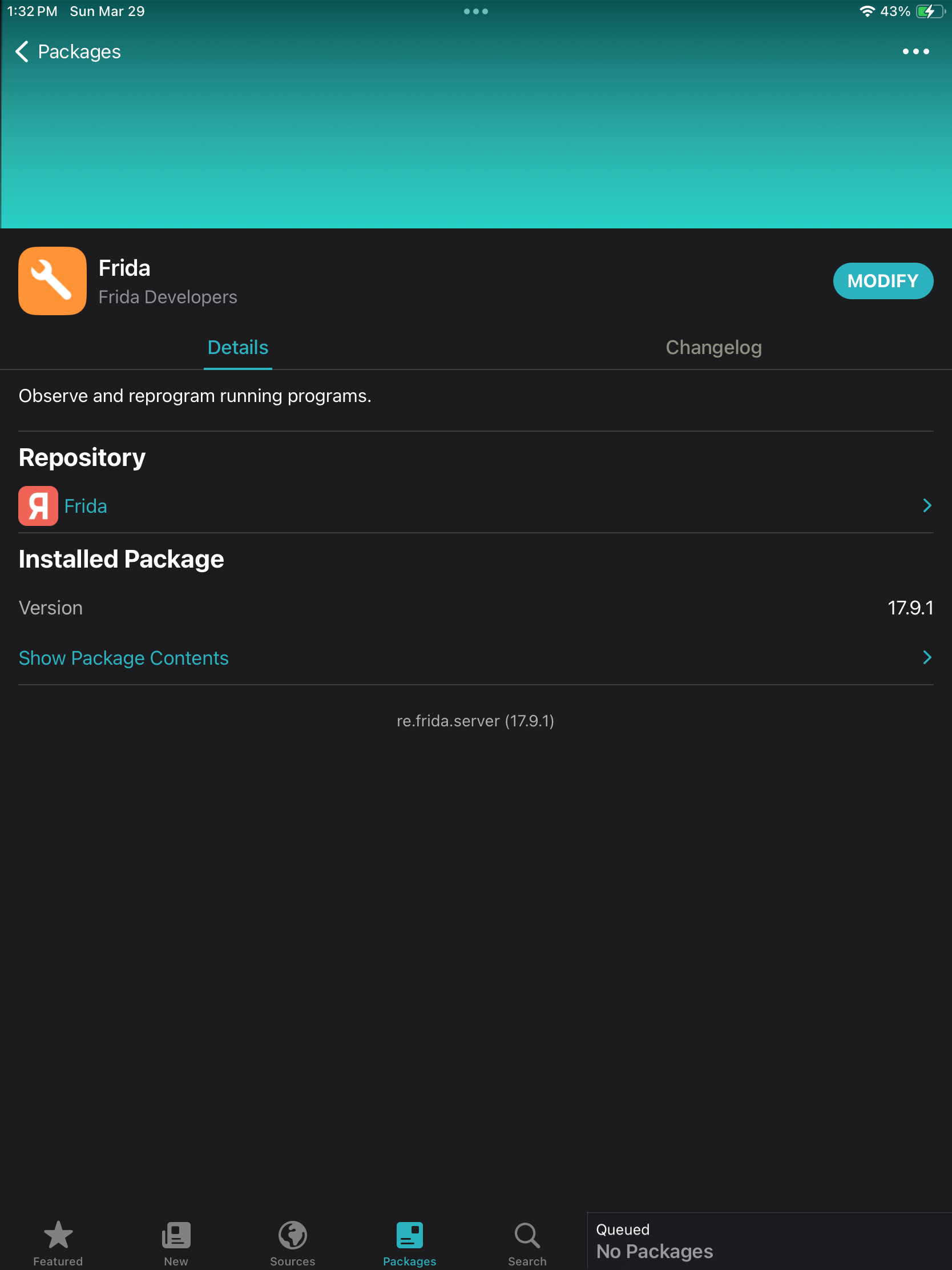
To install the Frida server:
- Open Sileo
- Add the following source:
https://build.frida.re(Click Sources button at the bottom nav bar) - Tap Add Source
- Once added, Frida should appear in your list of available packages. Install it from there.
After this, you should be good to go!
This concludes the guide on Jailbreaking iPad for IOS Testing with palera1n. I
hope you found value in this content. Ping me on Social Media if you have any questions!